Step 1:
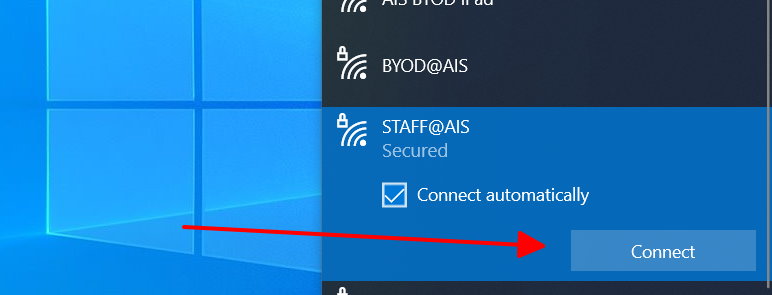
Click on the wireless icon in the bottom right system tray, select STAFF@AIS and click connect
*If you are using School laptop, go to step 3
Step 2:
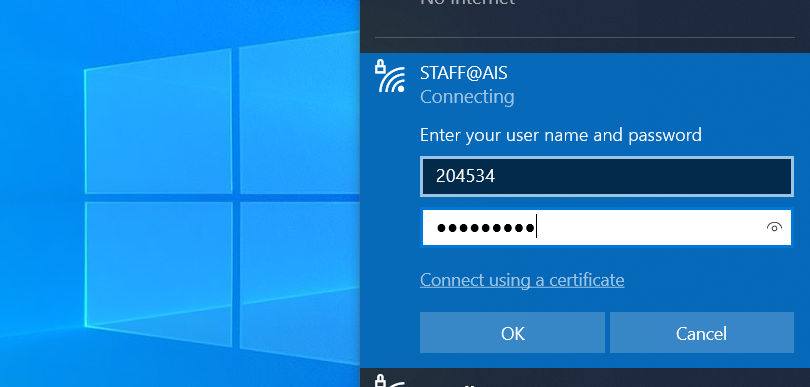
Enter your username and password then click OK
Step 3:
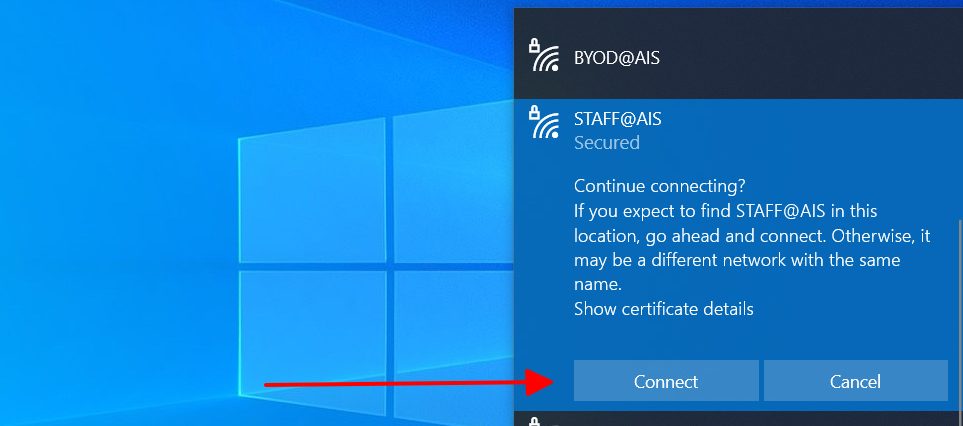
Click Connect to access wifi
Step 1:
Click on the wireless icon in the upper right, select STAFF@AIS
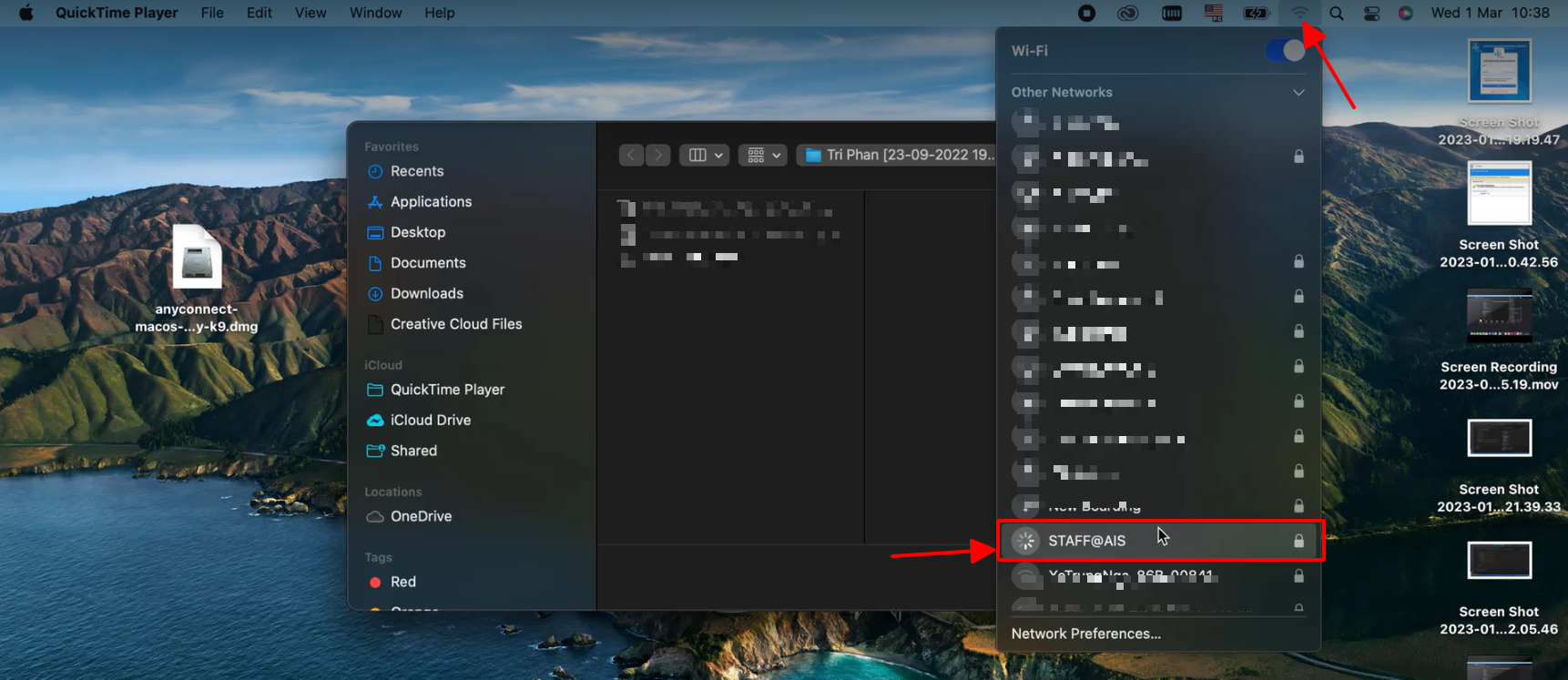
Step 2:
Enter your school ID and password then click OK
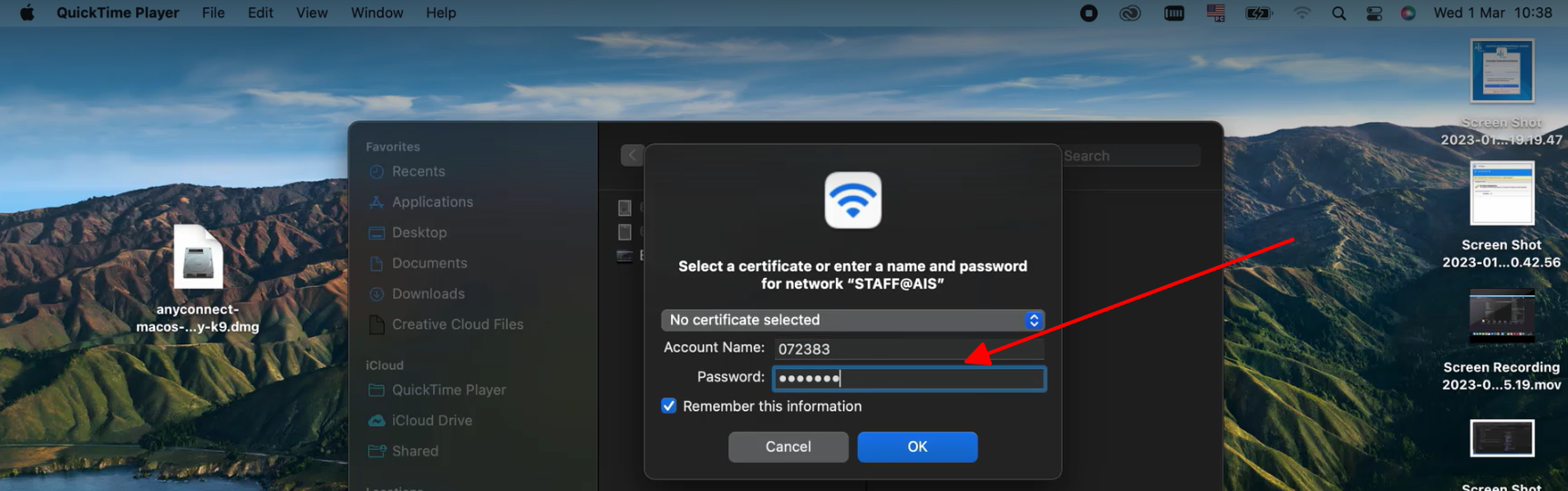
Step 3:
If this is your first time connecting to the network, you may be prompted with the AIS Wireless Security Certificate. If so, simply click Continue.
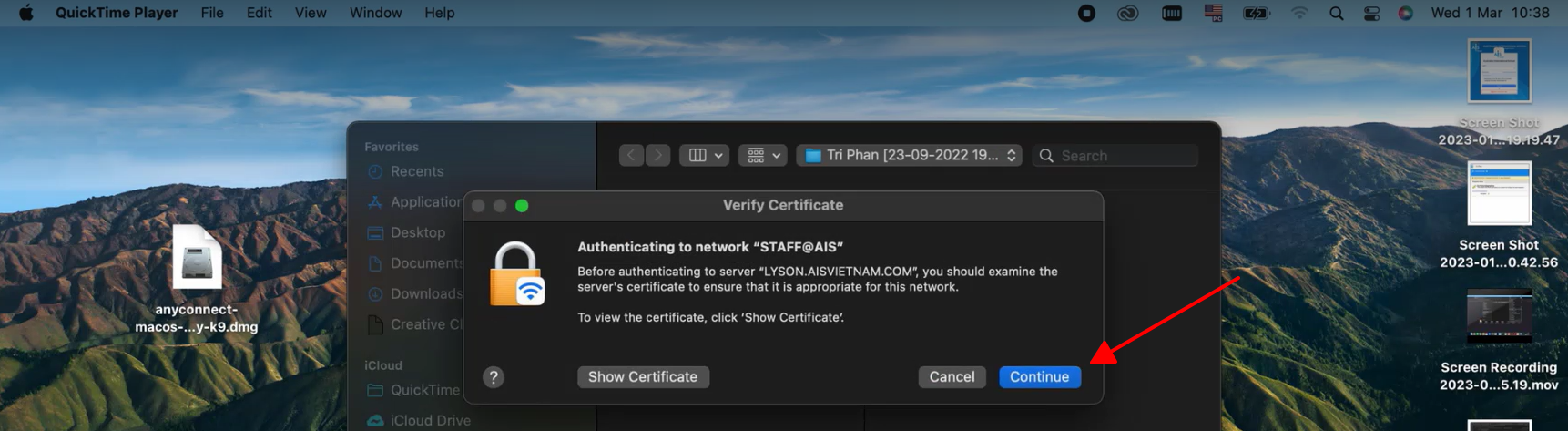
Step 4:
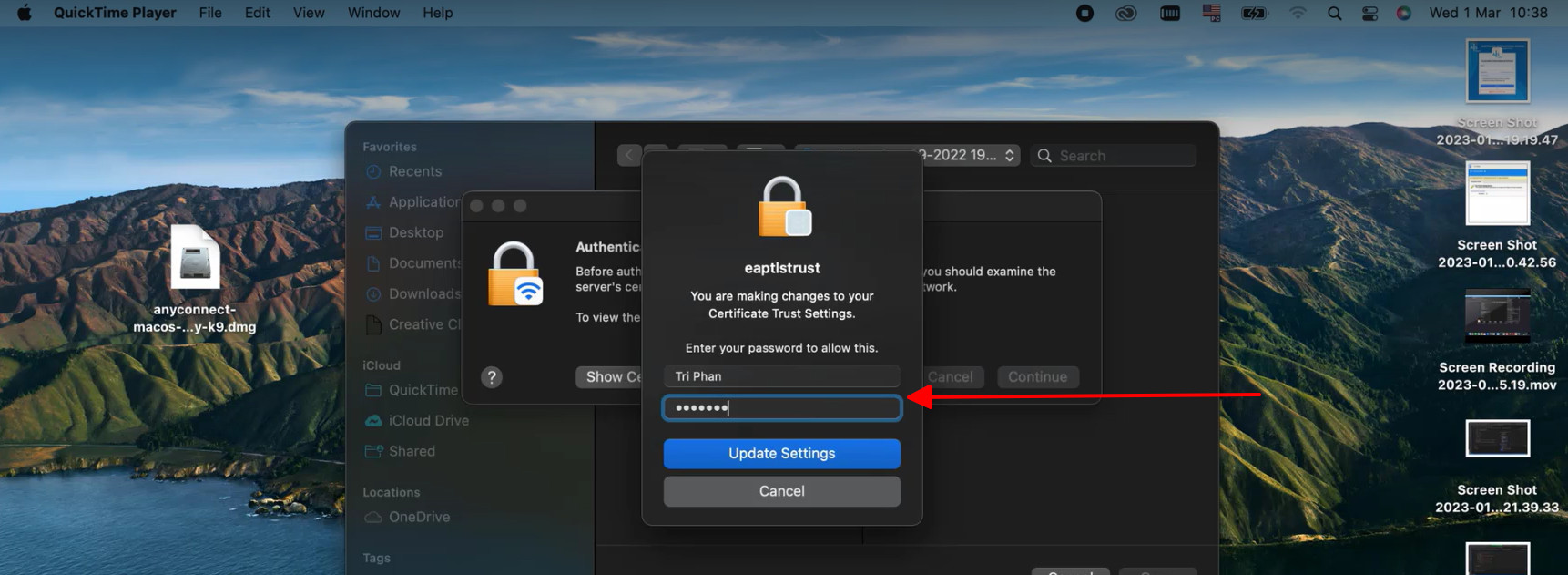
If you have a certain level of security on your Macbook, you’ll be prompted for your personal admin password to confirm these changes.
Step 1:
Locate and tap the Settings (Gear) icon on your phone, followed by Wi-Fi.
Step 2:
From the list of available networks, select STAFF@AIS

Step 3:
Enter your ID and password then click Join

Step 4:
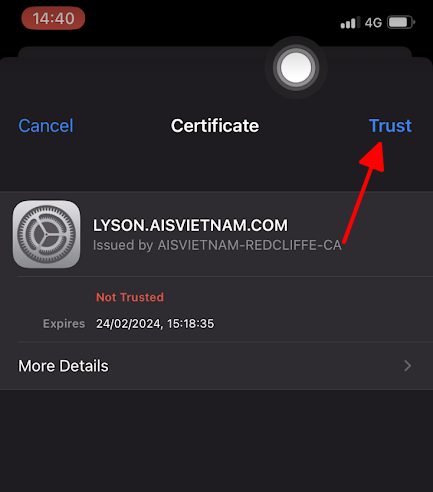
Your device may prompt you to trust the wifi certificate, tap Trust to complete the connection.
Step 1:
Locate and tap the Settings (Gear) icon on your phone, followed by Wi-Fi.
Step 2:
From the list of available networks, select STAFF@AIS

Step 3:
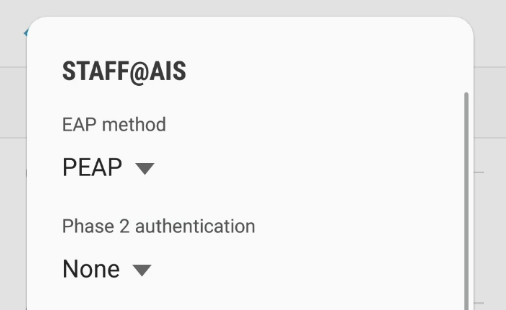
Set the EAP method to PEAP (if not set already).
Set Phase-2 authentication can stay as None for most devices.
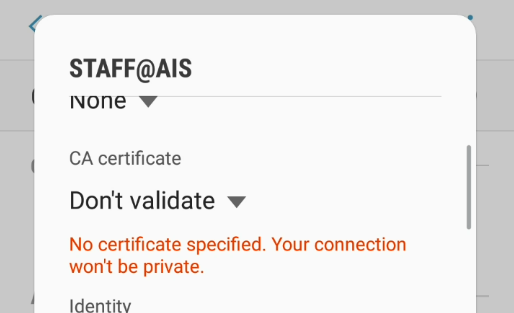
Set CA Certificate to ‘Don’t validate‘.
Step 4:
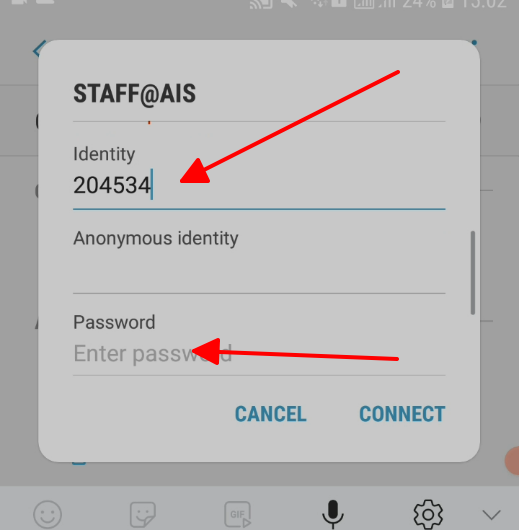
Enter your ID in the Identity and password then click Connect